Friday, 10 July 2015

How to Automatically Delete Spam Messages in Gmail

Gmail has a quick solution to that.It will automatically delete all of the spam messages in your Spam folder every thirty days.
Here are the simple steps to follow in order to delete the spams automatically from your email account.
1.Open your Gmail Settings by clicking on the Gear button.
2.Select Filters tab from it.Now click on Create a New Filter.
3.Now a window will pop-up, look for the Has the Words field in this window and type “in:spam” without quotes.
Leave all other fields empty and click Create Filter with this Search and select OK to proceed to next step.
4.Confirm your action by clicking “OK”
5.Check mark the box Delete it and Also Apply filter to next to Create Filter and click on Create Filter.

6.Now you will see a message Your Filter was Created.
That's it! Now all your spam messages will be automatically delete and there will be no message in your Spam folder anymore. Make it Simple

Wednesday, 8 July 2015

How to Import Your Bookmarks From One Browser to Another

Most internet users find difficulty in using bookmarks while switching from one browser to another browser. Switching from one browser to another browser doesn’t automatically import bookmarks too from one browser to another.
Luckily Google Chrome provides option to import bookmarks from Internet Explorer and Firefox. So anyone can transfer all their bookmarks from one browser to another by performing a few simple steps
Let see now how to import the bookmarks from Internet Explorer and Firefox into Google Chrome

Google Chrome Import Bookmarks from Internet Explorer

Click the Google chrome menu icon from the right-top corner of the browser
select Bookmarks > Select Import Bookmark Settings.

Now you can see the Import Bookmark Settings, here you need to select which Browser bookmarks import to Google Chrome.Here l has selected internet explorer then click the import button.


Your all Bookmarks will imported from Internet Explorer to Chrome now.


You can see/ access your imported bookmarks from the Import from IE folder.

Google Chrome Import Bookmarks from Firefox

Google Chrome importing bookmarks from Internet explorer is similar to import Firefox bookmarks. 

Click the Google chrome menu icon from the right-top corner of the browser
select Bookmarks > Select Import Bookmark Settings.

Now you can see the Import Bookmark Settings, here you need to select which Browser bookmarks import to Google Chrome.  Here l has selected internet explorer then click the import button.


Your all Bookmarks will imported from Firefox to Chrome now. 


Now you can use all the imported bookmarks into Google Chrome itself. Make it Simple

Sunday, 5 July 2015

Can I stop or ‘un-send’ an email I sent by mistake?

  1. Ya now you can do that, just follow my instruction


    Sometimes we send an e-mail to someone, as soon as press send button. So realize that maybe something went wrong. With all of us, sometimes it is surely. After sending the email and we are thinking that I can cancel it. But now it is really possible to cancel the email, if you want to cancel any e-mail, use below method.But you have only 30 sec to undo the send mail.
  2. Here's how it works:
    1. Click the gear icon in the top-right corner of your Gmail window and select Settings from the dropdown menu.
    2. In general setting scroll down to the bottom where you see Undo Send and click Enable.
    3. Select a send cancellation period upto 30 seconds.
    4. Hit Save Changes at the bottom.

Now when you send an email, the yellow dialogue that displays "Your message has been sent" will also give you the option to Undo. Click it, and the email will reopen, un-sent, in the composition window.


For now, Undo Send feature is not available for the Gmail mobile app for smartphone devices. However, the company is planning to roll out the feature for the mobile app soon.

Sunday, 21 June 2015

How to Access Gmail When You are Offline

Suppose, you are in a hurry to read an important email from your inbox.Then you, suddenly noticed your internet connection but it's not available at your home or office. Oops! You are stuck at your desk waiting for the internet connection.
Google is always familiar with the user-requirements and they offers useful services. That is why they included the offline feature in Gmail. Using this you can access your Gmail inbox offline. You can read the emails from your inbox without any internet connection. The offline mode also allows downloading the attachments at your local computer.
Anyone can enjoy the Gmail offline feature. What you need is a Gmail account and a short span of time to set it up for the offline mode as the offline mode is disable by default. Here is how to prepare your Gmail account in advance and access Gmail when you’re offline.
Note: You can use the Gmail offline feature only in Google Chrome browser. So, at first,install the Chrome browser if you do not have it in your computer.
How to enable the offline mode in Gmail
1. Sign into your Gmail account using Google Chrome browser and go to ‘Settings’ at the right-hand corner from the top and select the ‘Offline’ tab. Now, Click the ‘Install Gmail Offline’ link.
This will open the the Gmail offline app page in chrome web-store.
2. Click the Add to Chrome button and then the ‘Add’ button at the popped up dialogue box.

It will install the Gmail Offline app at your browser.
3. Open a new tab in your browser and open the installed apps in your browser by clicking the ‘Apps’ icon from the left corner.
4. Allow offline mail by choosing the appropriate radio button and hit ‘Continue’.
You are done! You can now see that your browser has started backing up your emails and attachments locally.
Configure the Gmail offline settings
After getting ready with the Gmail offline feature, you can customize the setting by clicking the Gear icon. Choose the time from when you want to download the emails for offline reading.
                                               Make it Simple

Wednesday, 17 June 2015

How to Run Command Prompt Always with Administrator Privilege

Starting from the Windows XP, then in Windows 7 and now in Windows 8, some commands need the administrative privilege to get executed properly. In all versions of Windows, running the command prompt with administrative privilege is not so hard. You can do it by some few clicks.
The commonly followed way is typing ‘cmd’ at the start menu search box (in both Windows 7 and Windows 8) then right-clicking on the ‘cmd.exe’ from the search results and finally, choosing ‘Run as Administrator’. Isn’t it a long way. Better, there would be a one-click way. Here, at tomakeaway.blogspot.com, we’ve brought a shortcut way to open command prompt in Windows always with administrative privilege.

Run Command Prompt always With Administrator privilege

All you need to do is to setup a shortcut of the command prompt in your desktop or at any preferred location so that the command prompt opens directly with the Administrator privilege whenever you click on it. Here is how to do it.

Create the Desktop Shortcut of the Command Prompt

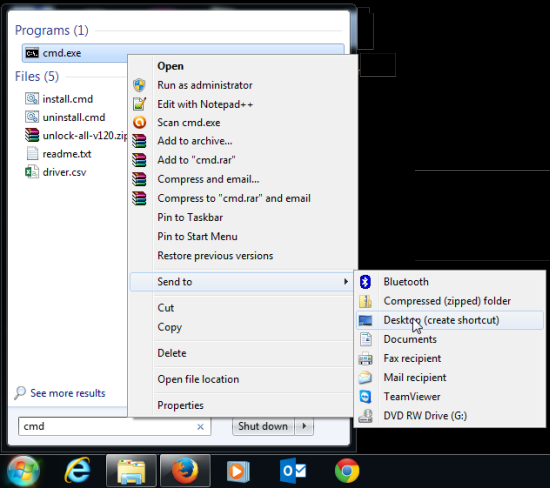
Type ‘cmd’ at the Windows 7 0r Windows 8 search box. This will show the cmd.exe. Just right-click on it and then choose ‘Send to> Desktop (create shortcut)’ from the context menu. The ‘cmd.exe shortcut’ icon gets created at your desktop.


Force the Shortcut to Open Command Prompt always in Administrator Privilege


Right-clicking on the shortcut that you’ve just created at your desktop will open the command prompt but not with the administrator privilege. Here is how to force it.
Right-click on the shortcut and choose ‘Properties’.
The ‘Properties’ window opens up. You can see that you are in the ‘Shortcut’ tab, so, no need to change the tab. Find out the ‘Advanced’ button and click on it.
Now, in the ‘Advanced Properties’ dialog box, check the box ‘Run as administrator’. Click [OK], then again click the [Apply] button.
 
You are done! Next time, whenever you double-click that shortcut, the command prompt will be opened with administrator privilege in C: > Windows > System32 folder.


Sunday, 7 June 2015

How to Remove “Earlier Version of Windows” from Windows Boot Menu

The term "Earlier Version of Windows” appears to the Windows boot menu just after you uninstall a Windows Operating System from a computer that previously had a dual boot configuration. Dual boot configuration can be found on a Windows PC when there are two separate Windows OS installed on a same PC. Whenever, you uninstall any one operating system, in the boot loader the option “Earlier Version of Windows” continuously appears. As a result of it, you have to choose the current operating system name each time you boot into your system. To bypass this annoying issue here I post a simple solution about how to remove earlier version of Windows from the boot menu.
 
The ‘earlier version of Windows’ option only appear if you have a dual boot Windows PC. The option will become useless only when you uninstall any Windows version among two installed OS. I have faced the problem even after installing a separate OS in the separate Windows drive. At the time of uninstalling an operating system I have formatted the associated drive completely. Yet, I get the “Earlier Version of Windows” option at the time of boot for several days.
There are several ways to remove earlier version of Windows option. This problem is very common and can be found in any major version of Windows e.g. Windows (7,8,8.1,XP,vista) and Windows server (2003,2008,2008 R2,2012) Here, I discuss two methods to remove Windows earlier version option.

How to Delete Unnecessary Boot Loader Options from Windows Boot Menu

Delete “Earlier Version of Windows” from Windows Boot Loader Using Command Prompt
At first, boot into existing Windows operating system and open command prompt with Administrator privileges. If you are a Windows 7, Windows 8 or Windows 8.1 user then, in the search box just type “cmd.exe”, right click on the perfect finding and select “run as administrator” option.
Type bcdedit in the command window and press enter.
Boot Configuration Data Editor Tool is a built-in tool of Windows and is used to edit boot menu text, and manages your Windows boot loader. It can be controlled using bcdeditcommand.
Now, in the command window you will see “Windows Boot Loader” entry. Under description section you will find earlier version of Windows option.
To delete the entry you have to enter the below command:
bcdedit /delete {03f85bc7-2a1c-11e4-a669-a8a736dc67a4} /f
Just press enter button and this will immediately delete the entry. Windows will make you confirm with the following message – The Operation Completed Successfully.
Now, you will not see the boot option anymore after restart the PC.

Monday, 1 June 2015

Use Laptop at Night With Ease For Eyes

Many of us are habitual of using laptops till late at night and we often don’t care about sleepy eyes. I myself feel much tired at moments when my laptop clock tells me that “It’s 2am” but since I am a computer enthusiast so often things are at zenith for me during laptop usage. Thus, as a result being so much curious about any thing which I am trying to develop over my laptop I never ever think to close the lid of laptop and take some rest for sake of my eyes. Since as per my opinion LED’s of modern laptops are not of that much harm to our eyes as compared to those traditional monitors which had those big picture tubes. However, still a rest of few minutes for the care of eyes is necessary instead of using laptop continuously without looking at the surroundings.
So, What to do when you are tired and still you want to use the laptop without the fear of looking at burning sun while sitting in the dark. I have a cool solution here in terms of a cool and handy software.
Flux – Software to make your life better:
I have been using this software since long time. This application has proved to safe my life a lot in conditions when I am feeling uneasy to look at my laptop screen because of the brightness. I don’t use this software for 24 hours, rather I just enable it for the time when I don’t feel satisfactory with the blue light being emitted from the LED screen of my laptop. This blue bright light is really irritating for me when I am tired and also at the same time I need to do more work.
You can download this software. After that just install it and it will detect your area of living automatically and if it doesn’t detect that, then kindly provide your area from the settings of this software.
 This software just makes the display of your screen more warmer and you feel more comfortable.
If you are doing color sensitive job then kindly tick the “Disable for one hour” to disable the application so that your display may again show original colors instead of warmer one.